The Approximately Monthly Zoomer

Hardware Hacking 2: Episode One
2026-09-25
Being severely employed and its consequences have been a disaster for my blogging pace. Nonetheless, it’s finally time to tear something apart and put on my thinking cap to understand how it works. I’ll try to describe, start to finish, my thinking process - how I go about finding out what a certain device does, how it works, how to fix it, how to extract data from it. Okay, maybe not start to finish, because saying “I’m able to hold more than one thought at a time” would be a criminal understatement considering my “train of thought” would be better described as a loose collection of Deutsche Bahn train carts in front of an 18 track terminus.
Looking With Your Eyes
Imagine, if you will, a small device, a devicey device, brand name Digoo, small, black, rectangular, velcroed to the storm drain of your newly rented apartment. A device you didn’t put there. Even at this stage, you can already answer a few question about the device:
- *Where is it found?* Outside, so it's probably intended for outdoor use.
- *Is it hidden?* Not really, it was hung at eye-level in plain sight, probably no surreptitious intent.
- *Who has access to it?* It's on the flat's balcony, so only the previous tenant, the landlord, and the current tenants, it most likely belongs to one of those people.
- *Are there any cables plugged into the device?* No, so it's probably battery powered and if it communicates, it does so wirelessly.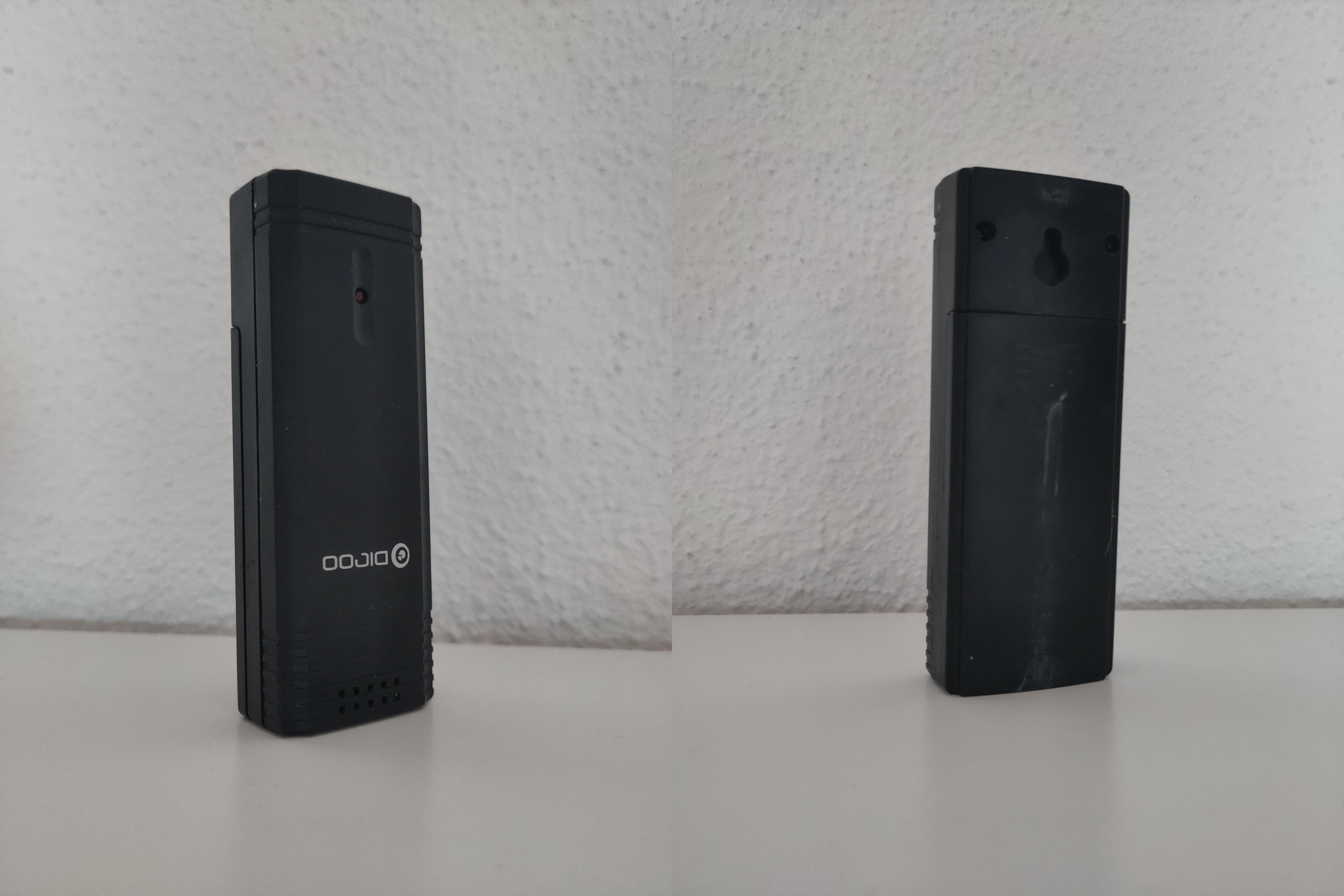
Looking With Your Hands
Barring surreptitious intent, a simple look is sometimes all it takes to realize what a device does, because routers, cameras, and phones are all phenotypically similar in their respective categories. In this case, I just assumed it was a temperature sensor based on its location and I searched for “digoo sensor”. It was the first result. In general, if you see certain types equipment often, you can more easily recognize it. Working in fire safety and protection probably helps you identify certain smoke detectors and sprinkler systems more easily. However, not everyone has a vast catalogue of electronics devices embedded (pun intended) in their brain and sometimes things are not as obvious. Maybe somebody wants to hide a device within another, like some short-term rent seekers do. In that case, you need to get personal with the device and look at it with your hands.
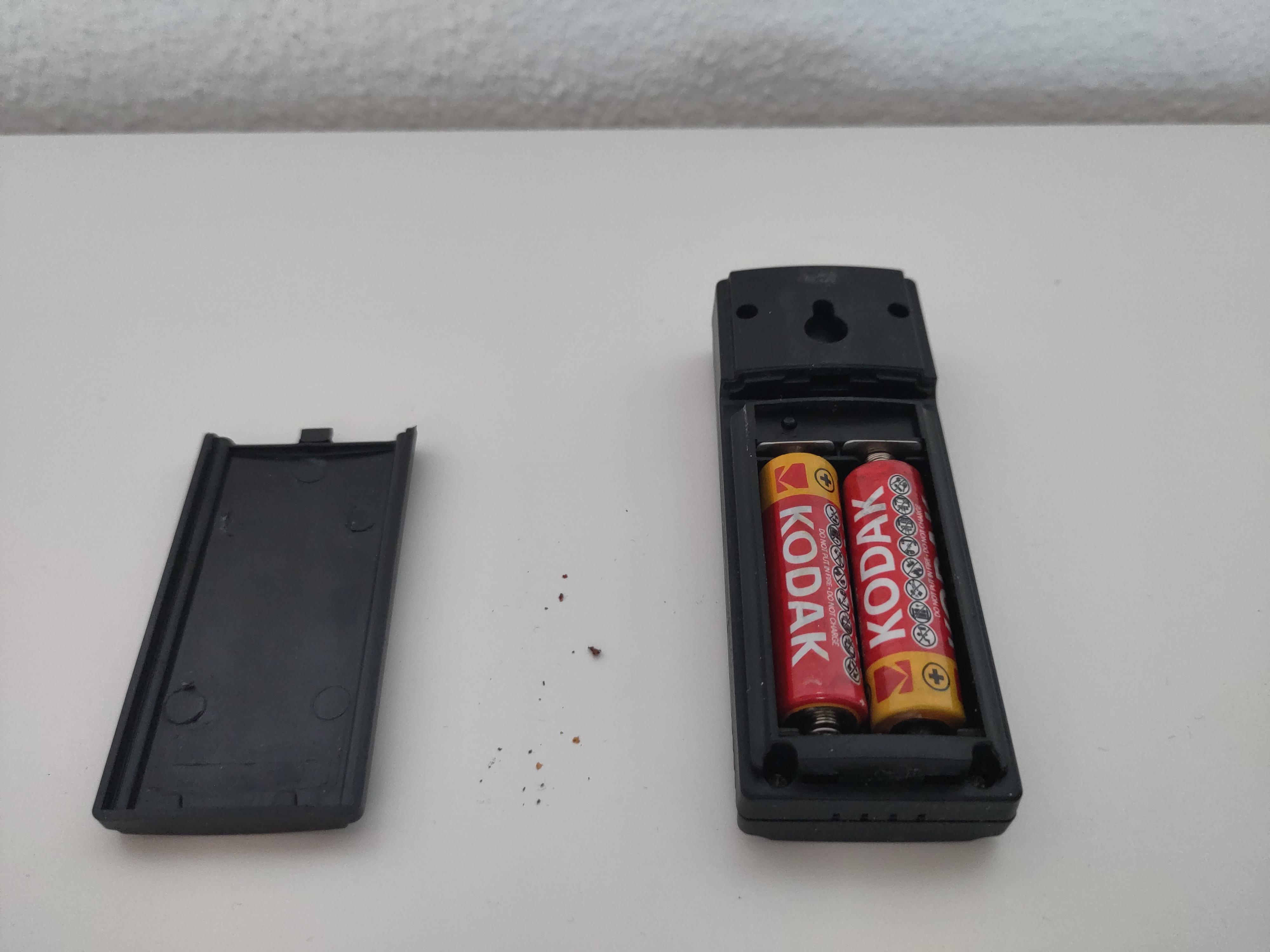
- *How large is it?* Barely larger than the batteries inside, so there is probably not a whole lot of electronics going on inside.
- *What color is it and has it been painted?* It's black and doesn't show any sign of being painted, its appearance hasn't been changed to appear as something else or blend into the background.
- *What material is it?* Plastic, no clear markings as to which type.
- *Are there any logos, markings, letters, numbers on it?* Only the brand "DIGOO".
- *Any externally visible components?* Yes, an LED (to show its status, e.g. working/running, sending, low battery), a keyhole mounting slot (to hang it on a wall), some holes/perforations (perhaps for a microphone or speaker inside?)
- *Does it have any compartments that can be opened?* Yes, a battery compartment.
- *How is it powered?* There are two AA batteries inside.
- *Does it have any switches or buttons?* Yes, one labelled "CH" in the battery compartment. Maybe this stands for "Channel"?
- *Is the case injection moulded?* Yes, there are visible ejector pin marks, so it's probably an off-the-shelf device.
At this point you should already have a general idea, about the device’s power usage. If it has to be plugged in, it probably uses a lot of power compared to battery devices. Plugged in devices usually have to calculate a lot themselves or need the power to transmit data somewhere else. This device is battery powered and intended for outdoor use. Most would consider having to change the batteries very frequently a design flaw so it probably doesn’t use much power.
Looking With Your Screwdriver
Now that you’ve taken a look at everything you can access with your hands, it’s time to go deeper.
- *Do the screws look new or are they already somewhat stripped?* They look brand new, the device has probably not been opened since it was manufactured
- *Do the screws unscrew easily, are they loose, do they "click" when unscrewing?* They are tight, but not too tight, they "click" when unscrewing, further confirming this device has probably not been tampered with.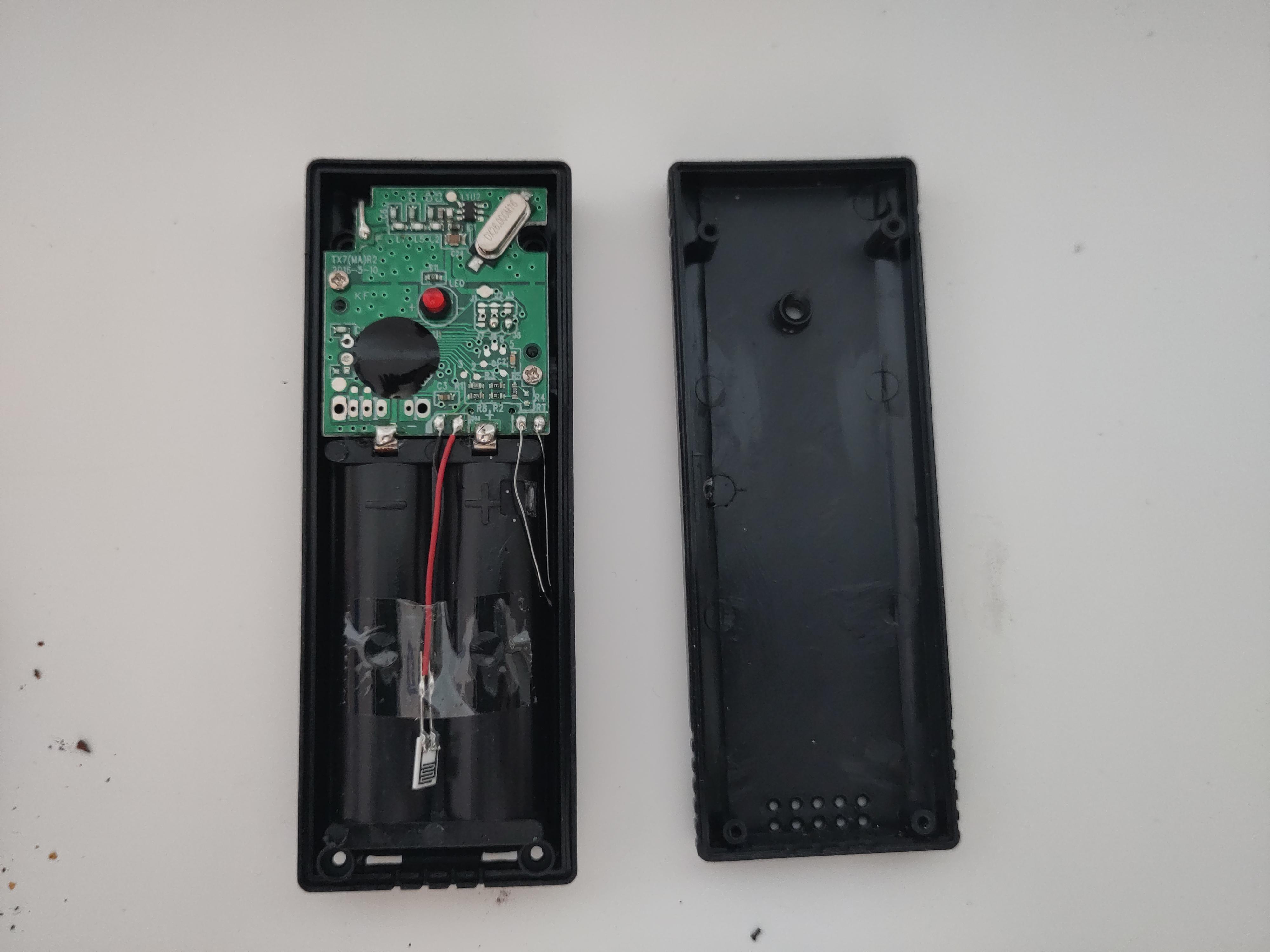
Now you start disassembling, unscrew all screws you can see, preferably depositing the screws in such a way, you know how to put them back. Use plastic spudgers or old credit cards to gently pry open the case should it not open immediately. Avoid prying it open with metal screwdrivers, the scratch marks will be visible, no matter how gentle and careful you are. Some manufacturers also like to hide screws behind stickers, use a screwdriver to gently scrape against a sticker to see if it dips into a hole behind the sticker.
With its components laid bare, look for any markings and identifiers.
- *Is the motherboard labelled with a name or version number?* TX7(MA)R2, 2016-5-10. R2 probably means second revision and 2016 is either the design year or the manufacturing year.
- *Is there any info on the case from the inside?* Only some markings further comfirming that the case is injection moulded.
- *Any QC stickers?* None.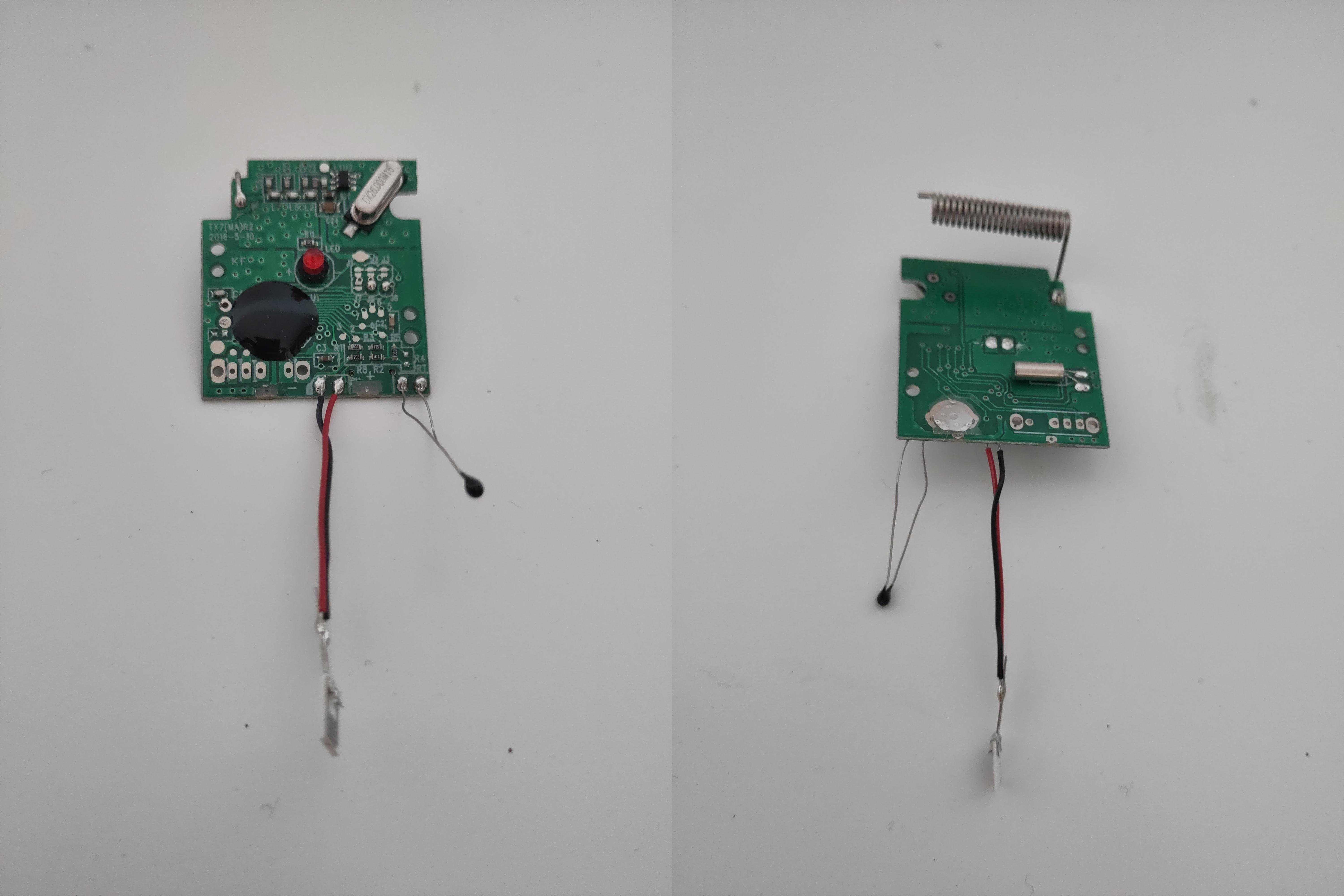
If you’ve taken a look at everything general, it’s time to take a look at the components and how they work together. This takes some practice and electrical engineering knowledge, but definitely not as much as one might think. While you can try to create a (mental or digital) model of the whole device, it’s usually enough to identify a few of the big components to infer the rest.
On this device we have: - A coiled antenna - Two oscillators - A black blob™ (COB) - A humidity sensor - A resistor with long long legs (temperature sensor, thermistor?)
Sidenote: You can calculate the rough wavelength range of the antenna with the quarter or half wave estimate. The length (L) of the conductor is (diameter: 4.5mm, length: 23mm, turns: 23, end/front pieces: 10mm) 335mm. Divide the speed of light by two or four times the length L and you get: 447.5MHz and 223.7MHz respectively. Give or take 20MHz because I didn’t measure it that exactly. The 443MHz radio band can be used with very little restrictions around the world, which is why most radio weather stations, garage door openers, wireless TV headphones, etc. use this frequency.
Sometimes it helps to search for the part numbers on some of the chips, this will usually tell you if it’s memory, a processor, or something else entirely. In this case, we only have a black blob™, so nothing to search for. The manufacturer either wanted to protect the chip from the elements, or they didn’t want anyone to know exactly which kind of chip they are using.
Done Looking
At this point I would usually get out the soldering iron and IC clamps, look for UART, roll for Arcana and get ready to attune to the device for it to reveal its secrets without destroying it in the process. Not in this case though. What we have found out so far is enough to determine what the device does. It’s a battery powered temperature and humidity sensor that broadcasts its measurements on 433MHz.
Funny Tech Talks Reloaded
2025-12-31
Almost 7 years ago I started a list of funny tech talks, because out of all the informative talks at all the hacker conferences over the years, the funny ones just hit different. The list has grown in recent years and with the last Chaos Communication Congress having just taken place I thought I’d remind everyone of this list and welcome you to create a pull request should you stumble upon something funny not yet represented. Star, watch, fork, pin, favourite, subscribe to, heart, upvote, share, seed, copy, like it on Github: Funny Tech Talks.
Server Upgrade 2: Electric Boogaloo
2025-11-20
Now that I’ve got my new server up and running it’s time to start fresh. I could just plop in the old SSDs into the new server and call it a day but I thought I’d use this opportunity to freshly install everything, with a little more intention and thoughtfulness.
Low-Hanging Chorus Fruit
Let’s start with something easy and get a minecraft server up and running. Since this is the least important of all my VMs, I thought I’d just give it an old laptop SSD to itself so I can still use the storage capacity and not have to worry about it degrading the rest of the system. Installed debian on it, java, some configs to have a nice shell, then minecraft, bob’s your uncle.
The Server Keeps Hanging
Every few hours to days the whole proxmox server becomes unresponsive and I have no idea why, but I do know that it only started after installing the minecraft VM. I disabled minecraft and everything else on the VM but it still kept happening. After a reboot it worked fine again so I was a little confused. Maybe a BIOS setting that forces the server to go to sleep when idle? At first having to reboot didn’t bother me but in the long run this is unsustainable, so I checked the proxmox logs.
-- Boot 0566b7c92eb84d7ca67724464869d645 --
Aug 20 13:17:01 pve CRON[41137]: pam_unix(cron:session): session closed for user root
Aug 20 13:17:01 pve CRON[41138]: (root) CMD (cd / && run-parts --report /etc/cron.hourly)
Aug 20 13:17:01 pve CRON[41137]: pam_unix(cron:session): session opened for user root(uid=0) by (uid=0)
Aug 20 12:17:01 pve CRON[31720]: pam_unix(cron:session): session closed for user root
Aug 20 12:17:01 pve CRON[31721]: (root) CMD (cd / && run-parts --report /etc/cron.hourly)
Aug 20 12:17:01 pve CRON[31720]: pam_unix(cron:session): session opened for user root(uid=0) by (uid=0)
Aug 20 11:17:01 pve CRON[22299]: pam_unix(cron:session): session closed for user root
Aug 20 11:17:01 pve CRON[22300]: (root) CMD (cd / && run-parts --report /etc/cron.hourly)
Aug 20 11:17:01 pve CRON[22299]: pam_unix(cron:session): session opened for user root(uid=0) by (uid=0)
Nothing to see really, so I checked the logs of the minecraft VM which were equally terse.
Aug 32 13:49:45 minecraft-debian systemd[1]: systemd-timesyncd.service: State 'stop-watchdog' timed out. Killing.
Aug 32 13:48:15 minecraft-debian systemd[1]: systemd-timesyncd.service: Killing process 354 (systemd-timesyn) with signal SIGABRT.
Aug 32 13:48:15 minecraft-debian systemd[1]: systemd-timesyncd.service: Watchdog timeout (limit 3min)!
Aug 32 13:17:01 minecraft-debian CRON[607]: pam_unix(cron:session): session closed for user root
Aug 32 13:17:01 minecraft-debian CRON[608]: (root) CMD (cd / && run-parts --report /etc/cron.hourly)
Aug 32 13:17:01 minecraft-debian CRON[607]: pam_unix(cron:session): session opened for user root(uid=0) by (uid=0)
So whatever causes this hang probably interferes with IO as well, since otherwise there would be all kinds of messages written to the syslog. I didn’t know how to investigate this exactly so I decided to plop in a GPU into my server, attach a monitor and just watch what is happening while it is happening, maybe there are some error messages flying around but they just can’t be written to disk. Indeed it turned out to be something with IO that generated a huge amount of errors flying across the screen, giving me at least somewhere to start.
I/O error, dev sda, sector 2048 op 0x1:(WRITE) flags 0xa08800 phys_seg 1 prio class 0
scsi_io_completion_action: 366 callbacks suppressed
sd 4:0:0:0: [sda] tag#10 FAILED Result: hostbyte=DID_BAD_TARGET driverbyte=DRIVER_OK cmd_age=0s
sd 4:0:0:0: [sda] tag#10 CDB: Write(10) 2a 00 00 00 08 00 00 00 08 00
blk_print_req_error: 366 callbacks suppressed
Maybe the drive is failing, it is old after all, but the SMART overall-health self-assessment test says “PASSED”. Before doing anything drastic I decided to replace the cables of the SSD, maybe it’s something stupid like that. What bothers me most is having to wait hours/days until it fails again after trying to fix it.
It Wasn’t the Cable
Even with new data and power cables it still kept failing (which is actually good for me because I can keep using my pretty and colorful sata cables). In the VM’s hardware section within proxmox I saw that there was an EFI partition configured, which is weird since I’m using the default SeaBIOS, so I reinstalled grub onto the disk from within the VM and removed the EFI disk in proxmox (which was /dev/sda5 for some reason - the VM’s swap partition).
The Server Keeps Hanging (But in Purple!)
The sever kept crashing but it behaved slightly differently. I was
able to ping the proxmox host but not ssh into it or look at the web UI
and I also noticed it rebooting several times thanks to the attached
monitor and the fans spinning up. The error messages kept changing and
they were seemingly unrelated to the actual problem I was facing but
after some searching I found some people online who said disabling XMP
for their RAM helped with sporadic hangs, so I disabled XMP and set the
frequency manually. An overnight memtest reported no issues and after
two hours… twelve hours… 24 hours… 48 hours of uptime there were no
crashes! And literally as I was writing that, I can see the screen go
purple and the distressed penguin on it wants to tell me the kernel
panicked! Okay no biggie, let’s reboot and see what this was about with
journalctl -r:
-- Boot 2f071f3f81b74e56ba34c35ca286a90c --
Aug 42 12:29:06 pve pvedaemon[1254]: <root@pam> successful auth for user 'root@pam'
Aug 42 12:26:28 pve pvedaemon[1253]: <root@pam> successful auth for user 'root@pam'
Aug 42 12:17:01 pve CRON[233453]: pam_unix(cron:session): session closed for user root
AAAAAAAAAAAAAAAAAAAAAAAAAAAAAAAAAAAAAAAAAAAAAAAAAAAAAAAAAAAAAAAAAAAAAAAAAAAAAAAAAAAAAAAAAAAAA
The logs are empty. Again. I had other things to attend to so it remained in this regularly failing state for a while.
Finally Some New Logs!
After a while of letting the server reflect upon its issues and updating everything I saw new logs, which only appeared once or twice in all the reboots:
Oct 44 05:38:53 pve kernel: watchdog: BUG: soft lockup - CPU#6 stuck for 309s! [server:976]
Oct 44 05:38:53 pve kernel: Sending NMI from CPU 0 to CPUs 7:
Oct 44 05:38:53 pve kernel: nmi_backtrace_stall_check: CPU 5: NMIs are not reaching exc_nmi() handler, last activity: 1189209 jiffies ago.
Oct 44 05:38:53 pve kernel: Sending NMI from CPU 0 to CPUs 5:
Oct 44 05:38:53 pve kernel: nmi_backtrace_stall_check: CPU 3: NMIs are not reaching exc_nmi() handler, last activity: 3488832 jiffies ago.
Oct 44 05:38:53 pve kernel: Sending NMI from CPU 0 to CPUs 3:
Oct 44 05:38:53 pve kernel: nmi_backtrace_stall_check: CPU 2: NMIs are not reaching exc_nmi() handler, last activity: 2339538 jiffies ago.
Oct 44 05:38:53 pve kernel: watchdog: BUG: soft lockup - CPU#6 stuck for 283s! [server:976]
Oct 44 05:38:53 pve kernel: CPU: 4 PID: 17 Comm: rcu_preempt Tainted: P
The CPU was softlocking, that would explain why it wasn’t able to
write to disk. I thought about the ways this could happen because it
rarely crashed when under load, only when it was basically idling. Then
it hit me, Linux and waking up from sleep have a really long and
complicated history together. I searched the internet to check if my
Chipset and CPU combination have any issues in waking up from sleep on
Linux - and they did! Not only on Linux but also on Windows, so
apparently this is a hardware issue. Apparently waking up the CPU from
low P-States doesn’t work as smoothly as it should after the voltage has
dropped. It is possible to force the CPU cores to never go under a
certain voltage, even when in low power states. On my motherboard this
setting could be found under
Power Supply Control: Typical Current Idle (alternatively
you could also set the Global C-States to
Disabled). Some old PSUs think the computer has gone to
sleep or turned itself off when it uses too little power, this also
helps prevent putting the PSU into such an unrecoverable state.
I think it worked
root@pve:~# uptime
20:24:51 up 17 days, 15:36
17 days and counting - I don’t want to jinx it but I think this finally fixed the issue.
Logging Logging Logging
If you have more than a few VMs, you definitely need a central point to view all your logs. There is simply no way you will go and check all the logs of all your VMs regularly if you have to do it separately for each of them - let alone if you have the attention span of a goldfish like me. Apparently an Elasticsearch-Kibana-Logstash (ELK) stack is the thing™ kids use these days, so of course I went ahead searched something simpler I could use. Some people seem to like Grafana Loki - why not give it a try before eventually settling on the thing everybody uses anyway.
There was just one minor hiccup while installing Grafana Loki: Their docs on installation tell you to install promtail, which, once you’ve installed it and go through the rest of the docs, you’ll notice is deprecated. Luckily uninstalling it and installing the preferred and new collector Alloy is fairly straightforward.
I got both Grafana, Loki, and Alloy running and played around with it
for a while, but at some point I saw that the systemd service of Alloy
kept failing - probably because it should run as its own user called
alloy and I edited its config files or ran it as root at some
point. That should be an easy fix though! cd /etc/alloy and
sudo chown -R alloy:alloy *. It really should have been an
easy fix, but what I actually entered was: cd /etc
and sudo chown -R alloy:alloy *, completely butchering my
/etc directory. Luckily I can just spin up a new VM and this massive
fumble happened while I’m still setting everything up - let this serve
as a reminder that automatic backups should be one of the first things
to set up, arguably even before logging, so let’s do that now™. Oh and
right, let’s just do the ELK stack instead, only indexing the metadata
of logs doesn’t really suit my use-case anyway.
Server Upgrade 1: The Case of Constrained Case Constraints
2025-05-14
Thinking outside the box is overrated. Having a set of constraints and trying to get the absolute most out of the situation is usually where true creativity shines. In this case the constraints are literal constraints of a case.
Hardware Upgrade
Every once in a while you encounter a deal too good to pass up on - such was the case when I saw a black friday deal for 64GB of DDR4 memory. One thing lead to another and I also bought a used motherboard and processor. Together with the PSU and SSDs I already had lying around this makes a server.
…
The case! I completely forgot about a case!
Thinking About the Box
My current server resides beneath the television, in the space I’m told has historically been reserved for magnetic tape readers of some sort. Since we don’t need that level of archival backups, this space has been unoccupied - perfect for my server. Having used a small convertible minitower by HP up until now, I never paid much attention to the height of the available space, but as it turns out, regular ATX cases aren’t really available in widths of less than 13cm.
At first, I thought about screwing all parts onto a plastic board and creating a basic cover out of the same material but then I found a cheaper, more readily available material - cardboard. I totally didn’t buy an appropriately sized plastic board and lose it on my way home.
The Signature Box 2
I’m not going to move the server about a lot and it doesn’t have to look particularly nice (just inconspicuous). It should be somewhat shielded from dust and most importantly: it needs to be done yesterday.
I got to cutting, gluing, creasing, bending, folding, taping and painting my new case. I hope its design is more of an insight into the arbitrary deadline I’ve set myself than it is a representation of my crafting abilities.
Cardboard isn’t exactly known for its structural integrity, so the more complex and intricate case design will have to wait until I get my hands on another plastic board.
enp432981s420wlx24017w
Installing Proxmox went fine, their installer does everything it needs to do, nothing to see here. Which is precisely what I wanted, to see nothing, so I turned off the machine, removed the GPU, and restarted it.
I am unsure what exactly was happening but the server didn’t boot
anymore - at least not in the way I wanted it to. At first I thought the
UEFI wants to show me that the hardware changed but it can’t since there
is no GPU (there is no integrated graphics either (Ryzen)). But what I
think was actually happening, is that the name of the network interface
changes when the GPU is no longer plugged in, something about PCI
enumeration, and this confuses Proxmox, which is actually booting but
unreachable from the network. There is a random piece of paper somewhere
where I’ve written down exactly how I solved this problem, but since the
problem is solved and this piece of paper no longer needed, it probably
resides somewhere in the pocket dimension where pens teleport to when
they fall off the table, never to be seen again. Something about
changing the interface name to eth0 I think it was.
What’s in the Box?
My case doesn’t really look particularly nice - one might even call
it laughably hideous. Maybe I could take the attention away from the
case itself and direct it toward the actual hardware with all of the RGB
everywhere. The CPU fan, all four RAM modules, and the motherboard greet
you with the finest unicorn themed light show when you turn it on.
Unfortunately, how ever pleasant this display of lights may be, it
shouldn’t distract from the quotidian televiewing experience, so now I
have the pleasure of installing OpenRGB onto Proxmox and create a
systemd unit so I can turn off the lights after boot. Such fun. I just
need it to run openrgb --mode static --color 000000 on
boot, how hard can it be?
[Unit]
Description=Turn off unicorn vomit

[Service]
ExecStart=/usr/bin/opt/openrgb --mode static --color 000000

[Install]
WantedBy=multi-user.target
Turns out you need a metric tonne of dependencies for OpenRGB, many of which I would rather not install on the same OS as Proxmox, not only for security reasons but also for maintainability reasons - the less my proxmox install deviates from the default, the less exotic and unique problems I’ll have to solve. Many weeks of trying different things and procrastinating later I was too frustrated with this whole light thing and just bought a cheap second-hand atx case (that is too wide for my constrained space of course). Not having the server neatly tucked in underneath the television is a visual burden I will have to bear after all, assuaged only by the tenebrous lack of RGB illumination. So much for my constrained case creativity. At least I can now focus on the important part - finally migrating all of my old stuff onto a new server.